2 Manage Updates
Configure automatic updates, scheduling rules, safety controls and email notifications.
What is Manage Updates?
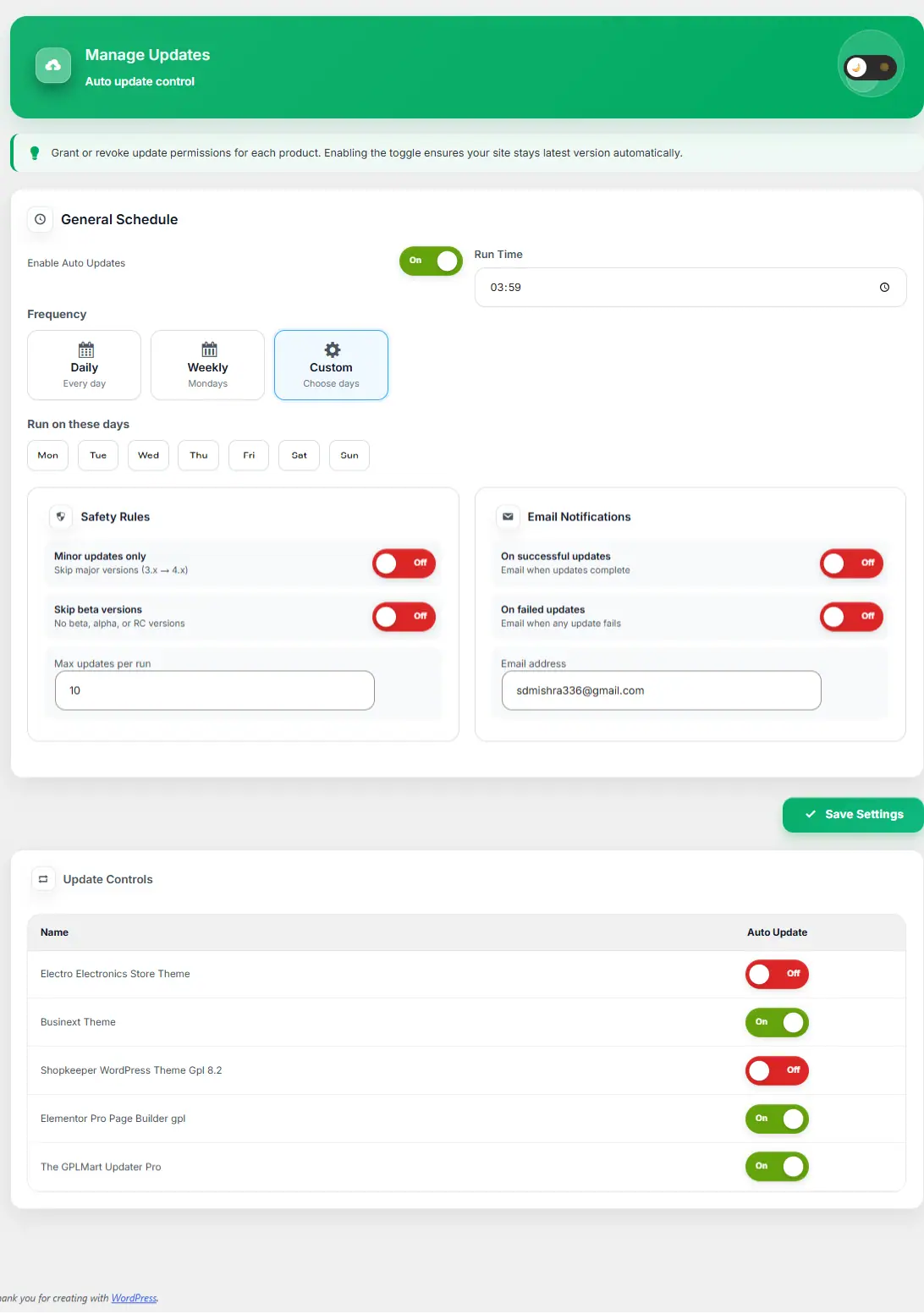
The Manage Updates module allows you to automate plugin and theme updates using schedules, safety rules, notification controls and per-product update preferences.
The Manage Updates module allows you to automate plugin and theme updates using schedules, safety rules, notification controls and per-product update preferences.
Important:
Automatic updates should be configured carefully. It is recommended to enable rollback protection before enabling scheduled updates.
Automatic updates should be configured carefully. It is recommended to enable rollback protection before enabling scheduled updates.
| Setting | Description |
|---|---|
| Enable Auto Updates | Turns the automatic update engine on or off. |
| Run Time | Defines the exact time updates should run. |
| Daily | Updates run every day at the selected time. |
| Weekly | Updates run once every week. |
| Custom | Choose specific weekdays for updates. |
| Safety Rules | Controls which updates are allowed. |
| Email Notifications | Receive update success or failure alerts. |
Schedule Modes Explained
- Daily: Best for frequently maintained websites.
- Weekly: Suitable for most business websites.
- Custom: Choose specific maintenance days.
| Safety Rule | Purpose |
|---|---|
| Minor Updates Only | Skip major version upgrades automatically. |
| Skip Beta Versions | Avoid unstable alpha, beta or RC releases. |
| Max Updates Per Run | Limit how many products update during a schedule. |
Email Notifications
Enable email alerts to receive update results after scheduled update runs.
Enable email alerts to receive update results after scheduled update runs.
| Notification Type | Description |
|---|---|
| Successful Updates | Email sent after updates complete successfully. |
| Failed Updates | Email sent when update errors occur. |
| Notification Email | Email address that receives update reports. |
Per Product Auto Update Control
Each plugin or theme can have its own Auto Update status. This allows you to keep critical products under manual control while automatically updating others.
Each plugin or theme can have its own Auto Update status. This allows you to keep critical products under manual control while automatically updating others.
Best Practice:
Enable rollback protection and maintain at least one backup version before using fully automated updates.
Enable rollback protection and maintain at least one backup version before using fully automated updates.