4 Branding Setup
Customize The GPLMart Updater branding and white-label settings.
What is Branding Setup?
Branding Setup allows you to customize the plugin appearance, replace GPLMart references, and create a white-label experience for clients.
Branding Setup allows you to customize the plugin appearance, replace GPLMart references, and create a white-label experience for clients.
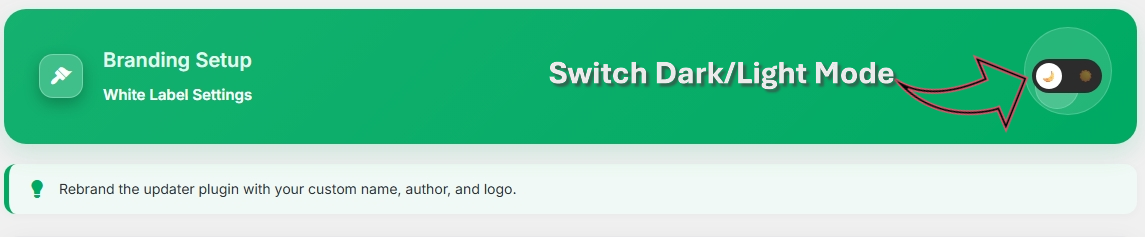
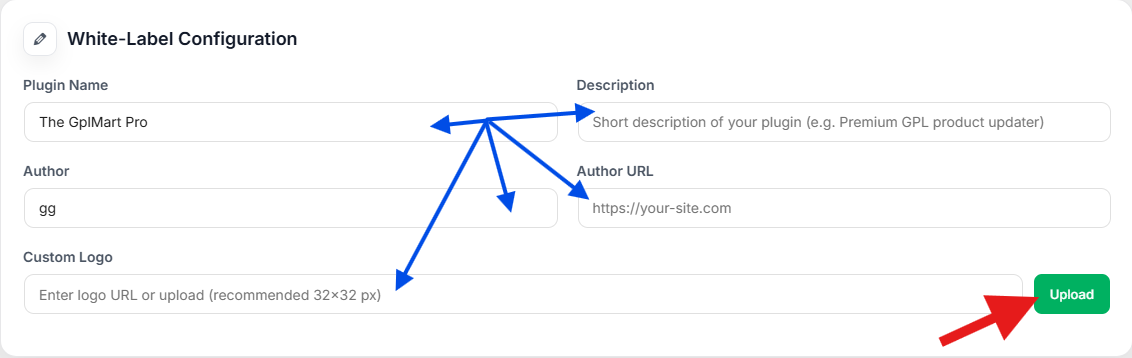
Step 1: Configure White-Label Settings
Enter your custom plugin name, author information, website URL and logo details.
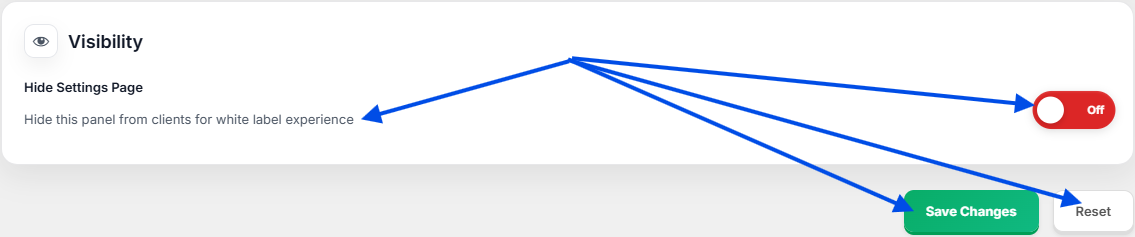
Step 2: Configure Visibility Options
Choose whether the Branding Setup page should remain visible or be hidden from clients.
Step 3: Save Changes
Click the Save Changes button to apply your branding configuration across the updater interface.
Important:
After saving, refresh the page to verify that your custom branding is displayed correctly.
After saving, refresh the page to verify that your custom branding is displayed correctly.
Important:
Branding changes only affect the visual interface and do not modify update functionality or licensing behavior.
Branding changes only affect the visual interface and do not modify update functionality or licensing behavior.
| Option | Description |
|---|---|
| Plugin Name | Change the displayed plugin name. |
| Plugin Logo | Upload a custom logo. |
| Company Name | Replace GPLMart branding with your own brand. |
| Support URL | Display your custom support link. |
| Website URL | Show your company website. |
White Label Features
- Custom plugin branding
- Custom company identity
- Custom logo support
- Client-friendly dashboard
- Professional reseller appearance
| Feature | Benefit |
|---|---|
| Custom Logo | Improve brand recognition. |
| Custom Name | Hide GPLMart references. |
| Support Link | Direct users to your support system. |
| Website Link | Promote your company website. |
Recommendation:
Keep branding consistent with your business identity to provide a professional client experience.
Keep branding consistent with your business identity to provide a professional client experience.